Context
When I first setup my Tailscale tailnet, it was to securely access my Openclaw instance remotely. Since then the topography of the tailnet has evolved to include more than just my laptop, phone, and Openclaw agent running on my Raspberry Pi. I’ve added two macbooks running Ubuntu Server OS that host apps like Jellyfin and n8n, migrated away from Openclaw and installed Home Assistant OS on the Pi, and added the family iPad to the tailnet so my wife and I could watch movies and shows while traveling. Up until now, the permissions on the tailnet were completely flat - all of the devices on the Tailnet could communicate with each other, wether they wanted to or not.
The Problem With a Flat Tailnet
Having no access controls on the tailnet meant that the server running Jellyfin could communicate with Home Assistant, which has access to the lights in my house and is connected to my doorbell. As I am experimenting with using persistent AI agents on my lab machines, it shouldn’t be possible for any agents, or anyone for that matter, to have access to my home. While I already have per-device firewall rules on the macbook servers with ufw, those devices are running Docker services which bypass ufw rules. In short, the Tailscale ACLs is my only line of defense for these services.
Planning the Policy
- Default deny; laptop has admin privileges
- Servers are tagged by their role (Jellyfin server =
media) - Servers only reply to connections - They cannot initiate anything
- iPad is shared with the family and should only access Jellyfin
| Device | Reaches |
|---|---|
| emilio-laptop | Everything |
| emilio-phone | SSH, n8n, Memos, SilverBullet, Jellyfin, Sonarr, Radarr, Home Assistant |
| shared-ipad | Jellyfin, Home Assistant |
| apps-pro, media-air, home-pi | Nothing |
Housekeeping
IP Addresses
As the IPs currently are, all devices on the tailnet get a random Tailscale IP address, which makes it difficult to remember IPs of the services and ports I’m running. If I’m able to assign IPs using some convention, I only need to remember convention instead of entire IP addresses. On the LAN, every device already has a fixed UniFi address with an orderly last octet. This was something I’ve been wanting to do on the Tailscale network for a while, so waiting until after I added an ACL policy would just mean going back into the policy to update the IP addresses.
I decided to use 100.100.<group>.<n>, where the third octet is a role group borrowed from the matching UniFi VLAN number.
- 10 = personal devices (the Trusted VLAN’s number)
- 30 = shared/family devices (the Guest VLAN’s number)
- 40 = servers (the Homelab VLAN’s number)
The group describes the device’s role, not the VLAN it’s actually on. The Home Assistant Pi is 100.100.40.3 while it’s still on the Trusted VLAN. The UniFi VLAN migration will come later.
| Device | Old | New |
|---|---|---|
emilio-laptop | 100.74.183.10 | 100.100.10.1 |
emilio-phone | 100.88.192.31 | 100.100.10.2 |
shared-ipad | 100.121.245.43 | 100.100.30.1 |
media-air | 100.80.138.8 | 100.100.40.1 |
apps-pro | 100.100.254.100 | 100.100.40.2 |
home-pi | 100.87.252.48 | 100.100.40.3 |
Device Names
I also wanted a naming convention that was consistent across machine hostnames, SSH host aliases, UniFi device names, and Tailscale machine names. As they were, machine names across those surfaces were a combination of what I named the machines (i.e. hostname) and what services reported the devices as (i.e iphone-15-plus). What I came up with was two conventions for people and servers:
For people: <who owns>-<device>
For servers: <owns what>-<device>
| Old name | New name |
|---|---|
| emilios-macbook-pro | emilio-laptop |
| iphone-15-plus | emilio-phone |
| ipad-10th-gen-wifi | shared-ipad |
| macbookair-ubuntu | media-air |
| ubuntu-mac | apps-pro |
| homeassistant | home-pi |
Making this change would break services using Tailscale Serve, which is what my n8n instance uses, because it uses the machine name as a subdomain for tailscale’s Magic DNS address. To fix this I would have to update the URL in:
- browser bookmarks
- Google Auth callback URLs
- Docker Compose configs
The Policy
This is the full policy I applied in the admin console’s JSON editor (Access controls → JSON editor):
// Tailnet policy: least privilege, except the admin laptop (full access).
// Clients (laptop, phone, iPad) start connections; servers start none.
// Return traffic is allowed automatically, so servers can't reach the
// clients, each other, or Home Assistant.
{
  "tagOwners": {
    "tag:apps": ["autogroup:admin"], // apps-pro (2018 MBP): n8n, todo, etc.
    "tag:media": ["autogroup:admin"], // media-air: Jellyfin
    "tag:ha": ["autogroup:admin"] // home-pi (Pi 4): Home Assistant
  },

  // Client devices stay user-owned (untagged), so they're named by Tailscale IP.
  "hosts": {
    "laptop": "100.100.10.1", // emilio-laptop
    "iphone": "100.100.10.2", // emilio-phone
    "ipad": "100.100.30.1" // shared-ipad (family)
  },

  "grants": [
    // Laptop: full admin access
    { "src": ["laptop"], "dst": ["*"], "ip": ["*"] },

    // iPhone: SSH to apps/media, n8n, Memos, SilverBullet, Jellyfin, HA.
    { "src": ["iphone"], "dst": ["tag:apps", "tag:media"], "ip": ["tcp:22"] }, // SSH access
    {
      "src": ["iphone"],
      "dst": ["tag:apps"],
      "ip": [
        "tcp:443", // n8n forms
        "tcp:3000", // SilverBullet
        "tcp:5230" // Memos
      ]
    },
    { "src": ["iphone"], "dst": ["tag:media"], "ip": ["tcp:8096"] }, // Jellyfin
    { "src": ["iphone"], "dst": ["tag:ha"], "ip": ["tcp:8123"] }, // Home Assistant

    // iPad: Jellyfin and Home Assistant only.
    { "src": ["ipad"], "dst": ["tag:media"], "ip": ["tcp:8096"] }, // Jellyfin
    { "src": ["ipad"], "dst": ["tag:ha"], "ip": ["tcp:8123"] } // Home Assistant
  ],

  // Note: Docker-published ports (the Jellyfin UI) and Tailscale Serve
  // (n8n) skip UFW, so this policy is their only access control.

  // Checked on every validate/apply. A failing test rejects the policy.
  "tests": [
    {
      "src": "laptop",
      "accept": ["tag:apps:22", "tag:apps:443", "tag:media:22", "tag:media:8096", "tag:ha:8123"]
    },
    {
      "src": "iphone",
      "accept": [
        "tag:apps:22",
        "tag:media:22",
        "tag:apps:443",
        "tag:apps:3000",
        "tag:apps:5230",
        "tag:media:8096",
        "tag:ha:8123"
      ],
      "deny": ["tag:ha:22"]
    },
    {
      "src": "ipad",
      "accept": ["tag:media:8096", "tag:ha:8123"],
      "deny": ["tag:apps:443", "tag:apps:22", "tag:apps:3000", "tag:apps:5230", "tag:media:22"]
    },
    // Servers can't reach Home Assistant, each other, or the clients.
    { "src": "tag:apps", "deny": ["tag:ha:8123", "tag:media:22", "laptop:22"] },
    { "src": "tag:media", "deny": ["tag:ha:8123", "tag:apps:22", "laptop:22"] },
    { "src": "tag:ha", "deny": ["tag:apps:443", "tag:media:22", "laptop:22"] }
  ]
}
It has three parts: tags, rules, and tests.
Tags
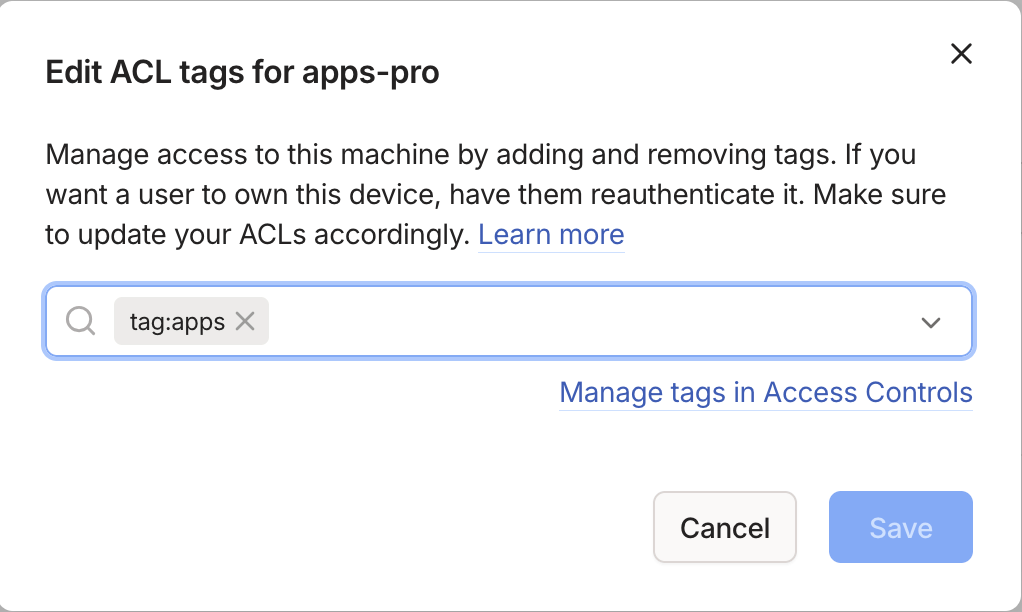
Tags group servers by role, so rules can point at tag:media instead of a specific machine. tagOwners creates each tag and says who is allowed to put it on a device. autogroup:admin is anyone with the admin role on the tailnet, which right now is just me.
Once the tags existed in the policy, I added them to each server from the Machines page in the admin console.
Rules
Client devices aren’t tagged, so hosts gives each one a name mapped to its Tailscale IP. That’s why the IPs had to be settled first.
Each grant allows a src to reach a dst on specific ports. Anything not granted is denied. The laptop is the only device with a wildcard. The phone and iPad only get the ports for the apps they use.
Tests
Writing access rules by hand makes it easy to open a port by accident or lock yourself out with a typo. tests describe what each device should and shouldn’t be able to reach: accept lists ports that must be open, deny lists ports that must stay closed.
The console runs the tests every time the policy is saved. If one fails, the save is rejected and the old policy stays in place.
The server tests answer the original problem: the Jellyfin server can no longer reach Home Assistant. If I ever loosen a grant in a way that lets it through, the policy won’t save.
Gaps in the Firewall
Before going strict, I wanted to know exactly what each server was listening on, so the phone and iPad wouldn’t lose access to something they needed. ss lists every listening port and the address it’s bound to:
$ ssh apps-pro ss -tlnThe address column is what matters. 127.0.0.1 means only the machine itself can reach the service, a 100.100.x.x address means only the tailnet can, and 0.0.0.0 means every network interface, including the LAN. Most of the output was what I expected, but two lines on apps-pro weren’t:
LISTEN 0      4096       0.0.0.0:8081       0.0.0.0:*
LISTEN 0      4096       0.0.0.0:8001       0.0.0.0:*
Those are the dev build of my todo app PWA. Because they were published on 0.0.0.0, anything on the LAN could reach them, and ufw wasn’t stopping it. Docker writes its own iptables rules that bypass ufw’s, which is why the tailnet policy is the only line of defense for these services.
The fix was binding the ports to the server’s Tailscale IP in the Compose file:
 api:
   ports:
-    - "8001:8000"
+    - "100.100.40.2:8001:8000"
 pwa:
   ports:
-    - "8081:80"
+    - "100.100.40.2:8081:80"
After recreating the containers, the same two ports only listen on the tailnet:
LISTEN 0      4096   100.100.40.2:8081       0.0.0.0:*
LISTEN 0      4096   100.100.40.2:8001       0.0.0.0:*
Now every service on both servers listens on either loopback or the Tailscale IP, with two exceptions: SSH, which ufw restricts to the Tailscale interface, and Jellyfin, which is bound to the LAN on purpose so the Roku TVs can reach it.
Verification
The tests prove the rules are right on paper. To prove they work on the network, I checked from both sides. From my laptop, which should reach everything:
$ nc -vz -G 3 100.100.40.2 22
Connection to 100.100.40.2 port 22 [tcp/ssh] succeeded!
$ nc -vz -G 3 100.100.40.1 8096
Connection to 100.100.40.1 port 8096 [tcp/*] succeeded!
$ nc -vz -G 3 100.100.40.3 8123
Connection to 100.100.40.3 port 8123 [tcp/*] succeeded!
And from apps-pro, which should reach nothing:
$ curl -m 5 http://100.100.40.3:8123
curl: (28) Connection timed out after 5002 milliseconds
$ nc -vz -w 3 100.100.40.1 22
nc: connect to 100.100.40.1 port 22 (tcp) timed out: Operation now in progress
$ ping -c 2 100.100.10.1
2 packets transmitted, 0 received, 100% packet loss, time 1046ms
Home Assistant, the media server, and my laptop are all unreachable from the server. Last, I opened the apps on the phone and iPad to confirm each one reaches only what’s in its row of the table.