In Templates, Clones, and Identity in Proxmox I built my first VM template by hand in the Proxmox GUI.
The template was based on the requirements for my first VM - the Wazuh manager - and was frankly a bit overkill for some of the quick experiments that I wanted to spin up, like creating a tiny VM (spec’d similar to DigitalOcean droplets) for the sole purpose of practicing Bash scripting using bite-sized exercises on Exercism. For short-lived, ephemeral VMs, I didn’t want to reserve 20GB of my 265GB of storage space, especially when I had plans to start learning Windows Active Directory.
My goal this time around was to create a “droplet-sized” template (1 core, 512 MB RAM, 10 GB disk) for these small throwaway VMs. I wanted it all to be done from the CLI, so I wouldn’t need to work in the Proxmox UI’s console, which doesn’t allow me to copy and paste any commands and is a bit harder on the eyes. What I thought was going to be a quick exercise in creating a VM to practice Bash scripting ended in automating the whole thing. Now going from zero -> template -> new VM is two commands.
You can find the scripts in my homelab-public repo.
Creating the template from the CLI
Create the VM from the existing ISO
Initially the VM we’ll use to create the template gets 2 GB of memory because 512 MB isn’t enough to run the Ubuntu installer. Once the install is done the template can be shrunk to 512 MB.
$ qm create 9001 --name ubuntu-droplet-template --memory 2048 --cores 1 \
  --net0 virtio,bridge=vmbr0 --scsihw virtio-scsi-single \
  --scsi0 local-lvm:10 \
  --ide2 local:iso/ubuntu-24.04.4-live-server-amd64.iso,media=cdrom \
  --boot 'order=scsi0;ide2' --agent enabled=1 --ostype l26
$ qm start 9001
Install Ubuntu
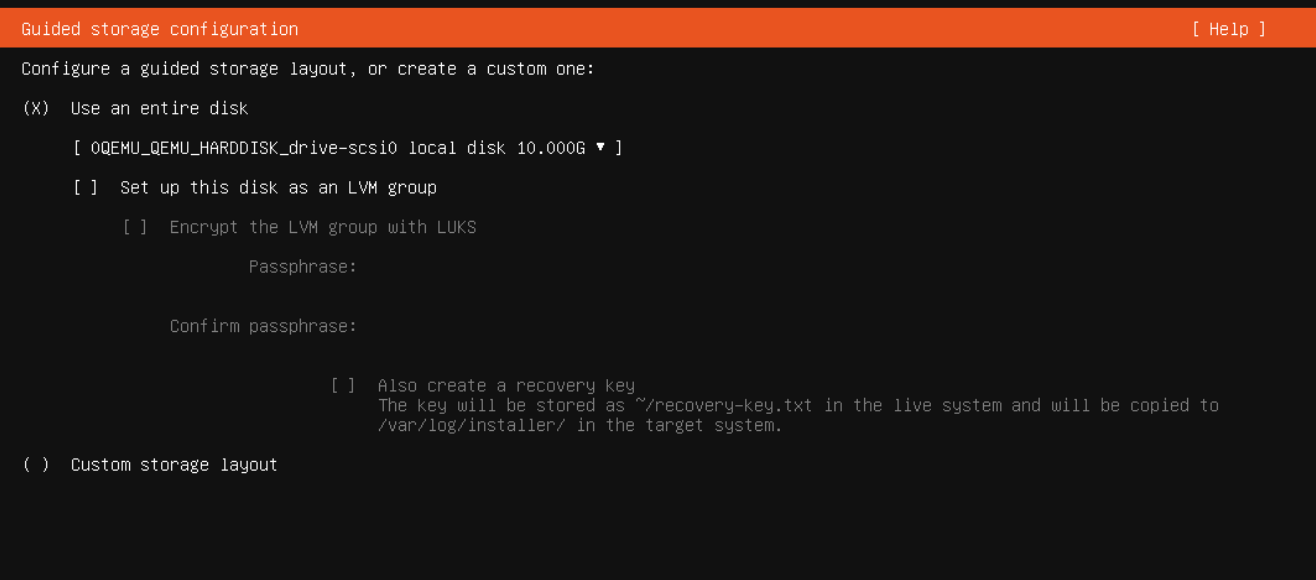
- On the storage step, uncheck Set up this disk as an LVM group. Leaving it on last time resulted in half of the storage being unallocated.
- Check Install OpenSSH server.
When the installer shows Reboot Now, stop. Eject the ISO from the host first with:
$ qm set 9001 --ide2 none,media=cdrom   # eject ISO
$ qm config 9001 | grep ide2            # verify: should show none,media=cdrom
Then reboot from the console UI. If it sits on a blinking cursor, run qm stop 9001 && qm start 9001 on the host.
Prep and generalize the guest
$ sudo apt update && sudo apt upgrade -y
$ sudo apt install qemu-guest-agent -y
$ sudo systemctl start qemu-guest-agent
$ df -h /                     # confirm ~9 GB on /, not half

$ sudo truncate -s 0 /etc/machine-id
$ sudo rm -f /var/lib/dbus/machine-id
$ sudo ln -s /etc/machine-id /var/lib/dbus/machine-id
$ sudo rm -f /etc/ssh/ssh_host_*
$ sudo apt clean
$ history -c && sudo shutdown now
The previous post explains why each of these matters.
Template, clone, resize, start
On the host:
$ qm set 9001 --memory 512    # shrink to droplet size
$ qm template 9001

$ qm list                     # show list of VMs to pick an unused VM ID
$ qm clone 9001 101 --name <role-name> --full
$ qm set 101 --cores 2        # CPU cores (sockets stay at 1)
$ qm set 101 --memory 1024    # memory in MB
$ qm resize 101 scsi0 20G     # grow to an absolute size, or +10G to grow by an amount
$ qm start 101
Note: Disks can only grow when you resize them.
Then on the clone, the first boot checklist:
$ sudo hostnamectl set-hostname <role-name>
$ sudo dpkg-reconfigure openssh-server   # regenerates host keys, starts SSH
$ cat /etc/machine-id                    # should differ from other clones
$ ip addr                                # new MAC, its own DHCP IP
I hate how manual this still is
The first time, creating the template, installing Ubuntu, and creating the first clone was very manual and done entirely in the GUI. This time it was mostly done from the CLI, but there were still manual parts of the process: clicking through the installer, ejecting the ISO before reboot, and running the first boot checklist on every clone. This still isn’t something I can automate with a script.
The Fix: Cloud Images
Cloud images are like Amazon Machine Images (AMIs) in AWS. Instead of installing the OS like we did, then resizing the RAM to 512MB, you download an image that already has the OS installed and generalized for you. It comes with cloud-init, which personalizes the machine for you: sets user and hostname, gets an IP, and adds your SSH key. These replace the manual steps from the GUI install and the first-boot checklist.
1. Download the image to /var/lib/vz/template/iso (pre-installed Ubuntu 24.04)
$ cd /var/lib/vz/template/iso
$ wget https://cloud-images.ubuntu.com/noble/current/noble-server-cloudimg-amd64.img
2. Create an empty VM, import the image as its disk
$ qm create 9002 --name ubuntu-cloud-template --memory 512 --cores 1 \
  --net0 virtio,bridge=vmbr0 --scsihw virtio-scsi-single \
  --agent enabled=1 --ostype l26
$ qm disk import 9002 noble-server-cloudimg-amd64.img local-lvm
$ qm set 9002 --scsi0 local-lvm:vm-9002-disk-0
$ qm resize 9002 scsi0 10G
3. Add the cloud-init drive and boot settings
$ qm set 9002 --ide2 local-lvm:cloudinit
$ qm set 9002 --boot order=scsi0
$ qm set 9002 --serial0 socket --vga serial0
4. Tell cloud-init who you are
# Note: the public key must already be on the host
# Creates the user with that key; SSH password auth is off by default
$ qm set 9002 --ciuser emilio --sshkeys /root/homelab-key.pub --ipconfig0 ip=dhcp
5. Create the Template
$ qm template 90026. Create the Clone
$ qm clone 9002 102 --name <role-name> --full7. Start the Clone
$ qm start 102I thought using this method would allow me to automate the template creation process by throwing steps 1-5 into a script. What I didn’t realize was that it would actually create a bigger headache than doing anything manually.
So we create a template, then a clone from that template. We still need to install qemu-guest-agent on the guest VM so that the Proxmox host can properly monitor it and see the guest IP address. We need to SSH into the new VM using our SSH key we added.
$ ssh -i ~/.ssh/homelab-key emilio@????????What’s the IP? Who knows! Proxmox UI can’t see it without the qemu-guest-agent installed. I could go into the UniFi console to check out the IPs on the homelab VLAN, which sucks now that I’ve created a few VMs that got IPs (then turned into templates), I’ve also made a few clones at this point and each of those got their own IPs too.
I tried out a few different IPs via SSH and I either connected to the wrong VM, got a timeout, or one of these lovely error messages:
@@@@@@@@@@@@@@@@@@@@@@@@@@@@@@@@@@@@@@@@@@@@@@@@@@@@@@@@@@@
@    WARNING: REMOTE HOST IDENTIFICATION HAS CHANGED!     @
@@@@@@@@@@@@@@@@@@@@@@@@@@@@@@@@@@@@@@@@@@@@@@@@@@@@@@@@@@@
IT IS POSSIBLE THAT SOMEONE IS DOING SOMETHING NASTY!
Someone could be eavesdropping on you right now (man-in-the-middle attack)!
It is also possible that a host key has just been changed.
The fingerprint for the ED25519 key sent by the remote host is
SHA256:<redacted>.
Please contact your system administrator.
Add correct host key in ~/.ssh/known_hosts to get rid of this message.
Offending ED25519 key in ~/.ssh/known_hosts:23
Host key for 192.168.50.245 has changed and you have requested strict checking.
Host key verification failed.
This happens when you’ve added enough devices/clones on the VLAN that IPs get repeated. Each clone generates its own SSH host key which my laptop associates with an IP. It’s now seeing the same IP associated with a different host key and is sounding the alarms. The error was actually a good thing because it prompted me to remove the SSH host key entry in my ~/.ssh/known_hosts file and try again - successfully this time.
Remove the old SSH host key entry
$ ssh-keygen -R 192.168.50.245I could have decided to just install qemu-guest-agent and call it a day, but at this point the goalposts have moved. Now I want a script to create the template in one go, no manual intervention. I need to eliminate the qemu agent install step. With cloud-init alone in Proxmox, only the user, SSH keys, and network are covered. There’s no option to install packages like qemu-guest-agent, which we need to have visibility into the newly created VM. To achieve this, you need to pass cloud-init a config file called a cloud-init snippet. It lets you specify packages and commands to run on first boot. This is the equivalent to EC2 user data in AWS.
Creating the cloud-init snippet
First, enable snippets in the Proxmox storage manager. Keep the existing content types as this command replaces the list.
$ pvesm set local --content iso,vztmpl,backup,snippetsThen create the snippet file at /var/lib/vz/snippets/base.yaml:
#cloud-config
# /var/lib/vz/snippets/base.yaml
package_update: true
packages:
  - qemu-guest-agent
runcmd:
  - systemctl start qemu-guest-agent
Attach the snippet to the template and try again
Destroy the clone:
$ qm stop 102 && qm destroy 102Recreate the clone and attach the snippet:
$ qm set 9002 --cicustom vendor=local:snippets/base.yaml
$ qm config 9002 | grep cicustom    # should show vendor=local:snippets/base.yaml
$ qm clone 9002 102 --name droplet --full
$ qm start 102
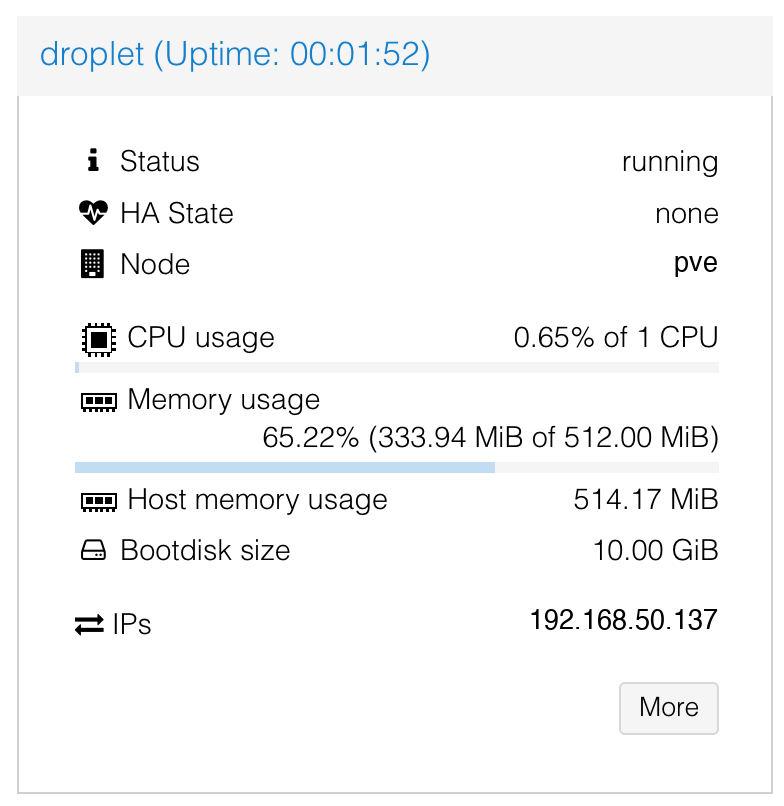
After a few minutes the IP shows up in the Proxmox UI, and ssh -i ~/.ssh/homelab-key emilio@192.168.50.137 works.
Scripting it
Version 1: a script on the host
#!/usr/bin/env bash
# usage: make-template.sh <vmid> <template-name> <image-url>
set -euo pipefail
ID=$1 NAME=$2 URL=$3
IMG=/var/lib/vz/template/iso/$(basename "$URL")

[ -f "$IMG" ] || wget -O "$IMG" "$URL"

qm create "$ID" --name "$NAME" --memory 512 --cores 1 \
  --net0 virtio,bridge=vmbr0 --scsihw virtio-scsi-single \
  --agent enabled=1 --ostype l26
qm disk import "$ID" "$IMG" local-lvm
qm set "$ID" --scsi0 "local-lvm:vm-${ID}-disk-0"
qm resize "$ID" scsi0 10G
qm set "$ID" --ide2 local-lvm:cloudinit --boot order=scsi0
qm set "$ID" --serial0 socket --vga serial0
qm set "$ID" --ciuser emilio --sshkeys /root/homelab-key.pub --ipconfig0 ip=dhcp
qm template "$ID"
echo "template $NAME ($ID) ready"
This is pretty good. We are now able to specify the template ID, its name, and the URL to the cloud image so we are not limited to creating a template just for Ubuntu. We can instead use different Linux distributions. At this point we’ve completely eliminated using a GUI to create a template and clone.
The script could even be improved upon by accepting parameters to specify the amount of memory, cores, storage, and even the path to the SSH keys and the default username. This makes it more portable, but manual steps still remain:
- copying the public key from my laptop to the Proxmox host machine
- SSH into the Proxmox host
- configuring the Proxmox storage manager to accept snippets to get qemu-guest-agent installed
- creating the
base.yamlsnippet file on the host - adding the
qm setcommand to our template scripts with the--cicustomflag to attach the snippet file
Version 2: running it from the laptop
make-template.sh runs from a device that already has an SSH key on the host machine that is listed in ~/.ssh/config. It takes:
- Host (user@host)
- Virtual machine ID
- Template name
- Cloud image URL
- Default user that gets created in the clones
- Path on your machine to a public key that gets installed in the clones so you automatically have SSH access
Optionally you can provide:
- Path to a snippet file on your computer
- If no snippet is provided or if the snippet provided does not contain an install for qemu-guest-agent, then the script will give a warning
- Console password. Default is key-only.
- Amount of disk, memory, and cores
Additionally, it provides a --help option for more details and usage examples. Let’s try it out.
$ chmod +x make-template.sh
$ ./make-template.sh --host pve \
  --vmid 9004 --name script-template \
  --image-url https://cloud-images.ubuntu.com/noble/current/noble-server-cloudimg-amd64.img \
  --user emilio \
  --ssh-key ~/.ssh/homelab-key.pub \
  --snippet ~/base.yaml

==> connecting to pve
==> snippets already enabled on local (vztmpl,snippets,backup,iso)
==> uploaded snippet /var/lib/vz/snippets/base.yaml
==> using cached image /var/lib/vz/template/iso/noble-server-cloudimg-amd64.img
==> creating VM 9004 (script-template): 1 core(s), 512MB, 10G disk
importing disk '/var/lib/vz/template/iso/noble-server-cloudimg-amd64.img' to VM 9004 ...
...
transferred 3.5 GiB of 3.5 GiB (100.00%)
unused0: successfully imported disk 'local-lvm:vm-9004-disk-0'
...
update VM 9004: -ciuser emilio -ipconfig0 ip=dhcp -sshkeys ssh-ed25519%20AAAA...%20homelab-key%0A
update VM 9004: -cicustom vendor=local:snippets/base.yaml
  Renamed "vm-9004-disk-0" to "base-9004-disk-0" in volume group "pve"
==> template script-template (9004) ready
Template seems to be created successfully. Let’s test it out by creating a clone and seeing if the IP address populates in the Proxmox console. On the host:
$ qm clone 9004 115 --name script-test --full
$ qm start 115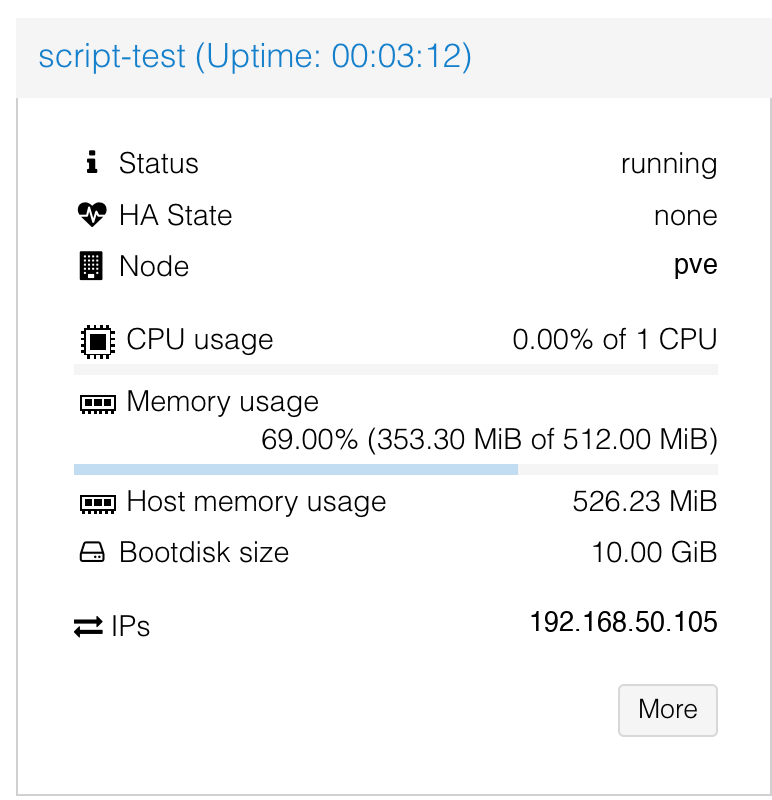
Creating a VM clone script
We can take things a step further and really beat a dead horse by creating a script that will allow us to create clones over SSH from our laptop as well. While creating the clones was only two qm commands above, if we decided to add a new snippet file (that would then overwrite the base.yaml snippet attached to the template), or we wanted to add storage, CPU cores, or memory, those would each be their own set of commands. new-vm.sh does all of it over SSH:
- Required: host, template ID, new VM ID, and VM name (which is also its hostname)
- Optional: cores, memory, disk, and a snippet that replaces the template’s snippet if used earlier
- Flags:
--no-startcreates the VM without starting it--no-waitstarts it without waiting for the IP
By default it waits up to 5 minutes for the guest agent to report an IP, clears any stale known_hosts entry for that IP, and prints the ssh command to use.
To run it:
$ chmod +x new-vm.sh
$ ./new-vm.sh --host pve \
  --template 9004 \
  --vmid 119 \
  --name scripted-vm

==> connecting to pve
==> cloning template 9004 -> 119 (scripted-vm)
creating a clone of VM 9004 with ID 119
create full clone of drive ide2 (local-lvm:vm-9004-cloudinit)
  Logical volume "vm-119-cloudinit" created.
  Logical volume pve/vm-119-cloudinit changed.
allocated target volume 'local-lvm:vm-119-cloudinit'
create full clone of drive scsi0 (local-lvm:base-9004-disk-0)
  Logical volume "vm-119-disk-0" created.
  Logical volume pve/vm-119-disk-0 changed.
allocated target volume 'local-lvm:vm-119-disk-0'
transferred 0.0 B of 10.0 GiB (0.00%)
transferred 104.4 MiB of 10.0 GiB (1.02%)
...
...
transferred 10.0 GiB of 10.0 GiB (100.00%)
==> starting 119
generating cloud-init ISO
==> waiting for the guest agent to report an IP (up to 5 min)
==> scripted-vm (119) is up at 192.168.50.184
    ssh emilio@192.168.50.184
Wrap-up
At this point I am now able to spin up Linux VMs with one command and dramatically reduce the time it takes to get up and running. I thought that I would be able to use this to create Windows VMs for my next endeavor but unfortunately that’s an entirely separate process. Instead of going through this entire process again with Windows, I’m tempted to evolve this process from a couple of scripts to using Terraform and Ansible to be able to provision machines with predefined configurations in a way that can be better organized and version-controlled.